
Print
How do I identify if a case is in a Batch?
When a case has been added to a Batch Response, details of the batch can be found on the Case Details page.
From the Batch Response, click on the Case Reference number of the case you would like to view, or use the Search field to find the case.
Scroll down to the Response Type field. Batch Response will be selected and details of the Batch Response will be available.
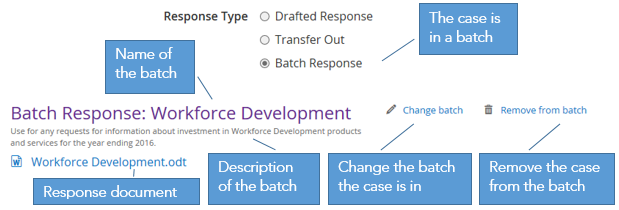
|
If you would like to… |
Then… |
|
Change the batch the case is in |
|
|
Remove the case from the batch |
|
You can also use the Case Search screen to search for cases in a batch.
- Click on the Case Search link.
- Select the Batch search criteria by clicking on the Choose Fields link. In the Advanced tab, place a tick in the Batch tick box.
- Click on the Apply button.
- Click on the drop down arrow next to the Case in batch? field and select Yes. The Batch field appears.
- In the Batch field, click on the drop down arrow to select the relevant batch.
- Click on the Search button. The results appear at the bottom of the screen.