
Print
How to add cases to a Batch
Cases can be added to a Batch Response at any time. To add a case, follow the steps below:
- Go to the More menu and select Batch Responses under the Management section.
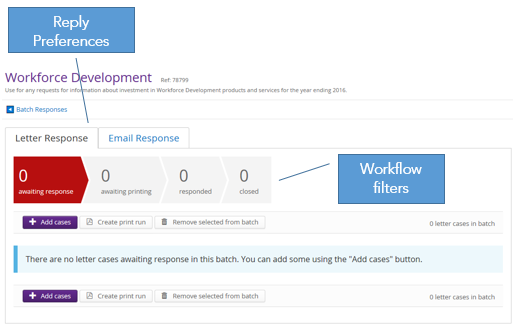
- Click on the name of the batch that you would
like to add cases to. The batch screen
opens where you can see the split between Letter and Email reply preferences
and the workflow filters. The Workflow
filters show the stage at which each of the cases is at, for example awaiting
response, awaiting printing, responded and closed.
- To add a case to the batch, click on the + Add cases button. This will direct you to the Case Search screen. The search is automatically restricted to open Ministerial Correspondence and Treat Official Case types. Additional search criteria could be added, for example Reply Preference, Key Terms, Team, Responding Minister. Click on the Search button to run the search.
- Place a tick in the Select
column next to the cases you would like to add to the batch, then click on the + Selected button.
If you would like to… Then… Add additional cases to the batch Click on the + Add cases button Remove a case from the batch · Place a tick in the checkbox next to the case
· Click on the Remove selected from batch button. The case is removed from the batch.View the response document for a case Click on the Editable link. All mail merge fields will have been filled with details from the case. View the case details Click on the Case Reference number for the case. The case will open in another tab.