Print

Action Options

There are a number of actions that can be added to an automation rule based on the fields that are available on the case types in your eCase instance. The table below explains the different actions available.

Action Description
Allocate the case to Select the drop-down field to choose a team where the automation rule will allocate the case to. This list is managed via the Organogram screen.

When allocating the case to a team, the default is to assign the case to the hub coordinators at that team level. If the team doesn't have any users with the Manage a hub privilege on their user account, the case will be allocated to the team, but will appear in the Awaiting Allocation tab. Any user with the Manage cases Awaiting Allocation privilege on their user account will then see these cases.
Update the field There are a number of actions where a field can be updated based on an automation rule. When adding an Update the field action, ensure that the relevant field is available on the case type/s the rule applies to.

Update the field Action Description
Correspondence Description appending Type in a word, sentence or paragraph of text that will be added at the end of the Correspondence Description when the case is created.
Customer Journeys to Select the relevant Customer Journey from the drop-down list. This list is managed via the Customer Journeys set on Field Value Options.

The Customer Journey value will be added to the case in the Customer Journey field for those requests that match the criteria.
Information Requested appending Select the relevant Information Requested from the drop-down list. This list is managed via the Information Requested set on Field Value Options.

The Information Requested values will be added to the case in the Information Requested field for those requests that match the criteria.
Key Terms appending Select one or more Key Terms to be added to the case when it is created. The list is maintained via the Key Terms link on the More menu.
Sensitive Flag to Select Yes to mark the case as a Sensitive Case. This will only work on cases that have the Sensitive Case field on Case Details.
Subject to Select the relevant Subject from the drop-down list. This list is managed via the Subjects link on the More menu.

The Subject value will be added to the case in the Subject field for those requests that match the criteria.
Urgent Flag to Select Yes to mark the case as Urgent. This will only work on cases that have the Urgent field on Case Details.
Add a mandatory clearance When adding a mandatory clearance you have three options to define which clearance type you require.

Add a mandatory clearance for the Description
QA Type Select the drop-down arrow to choose the QA type required. The list of QA types is compiled across all case types on your eCase instance. When adding an action to add a mandatory clearance for a new request, ensure that the QA type is available to be selected for that case type.

If you want to add multiple mandatory clearances via the automation rule, only one QA type with the same value can be entered.
QA User in Team Select the drop-down arrow to choose the team where a quality assurance request will be sent to a user in that team. This list is managed via the Organogram screen.
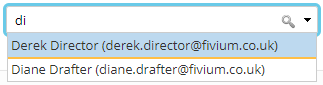
Specific Person Place your mouse in the empty field and start to type out the name of the person you would like to QA the response of the request. As you start to type the name of the person, a list of matching users will show. Select the user you require.

User selector

Only one mandatory clearances per user can be added via the automation rule.
Send acknowledgement email When an action is set to send an acknowledgement email by the automation rule, the email template that will be sent is the Case Acknowledgement - Webform Cases. When creating a new acknowledgement template for the webform submissions, ensure the mail merges used on the template can be pre-populated with the data collected on the webform.

For more information on email templates:
1. Add a new email template
2. Modify an email template
3. Choose a default email template