
Similar Cases
When you open a case, Similar Cases shows you other cases that the AI considers relevant to the one you are working on.
The AI reviews:
- The context and meaning of the request
- The intent behind the request
- How recent the previous case is
You will only see Similar Cases that were received within the last 3 months, are from the same case type and contain at least 50 characters in the correspondence description and any correspondence documents linked to the case.
Similar Cases can be used by the case owner to review relevant information and to enable them to make better information decisions on how to progress a case. It also assists you with best practice. Ensures consistent case handling regardless of a case worker’s experience level. When a similar case is chosen, it will help the Drafting Assistant generate a response which is more efficient and consistent.
Similar Cases are user specific, so the person creating the case can flag their recommendations. When the case is allocated to a hub coordinator, they can flag their recommendations and finally, the drafter can review and identify their Similar Cases. Each time a Similar Case is flagged, it increases the accuracy of future suggestions, making the Drafting Assistant more reliable when generating responses.
Similar Cases is found on Case Details for any case type the feature has been turned on for. You will see the top five suggestions.
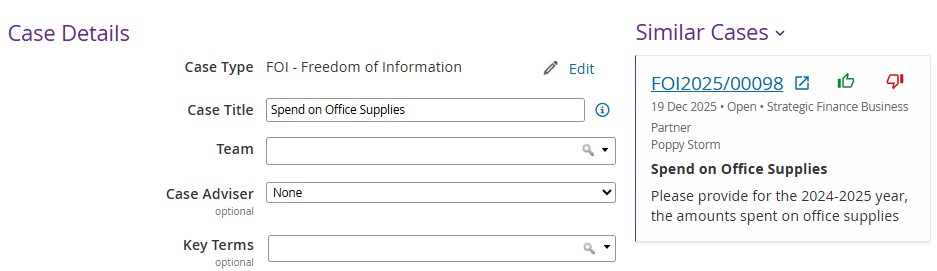
To use Similar Cases:
- Review the case by selecting the Case Reference Number. This will open the case in another internet tab.
- Once the case has been reviewed, select one of the thumbs-up icons:
- Green thumbs-up icon
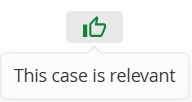
Identifies a case as being relevant to the one you are working on. This will filter the Similar Cases panel. These cases will then be dynamically fed into the Drafting Assistant to help produce a response.
The thumbs-up will lock the case in the Similar Cases list for that user. It will be shown as a filled in green thumb icon.
- Red thumbs-down icon
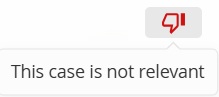
Removes the case from the Similar Cases list and ensures that is it not used as a source for the Drafting Assistant.